
Revolver Tabs: How to Automatically Rotate Tabs in Chrome
Do you have multiple browser tabs open that you need to check throughout the day? Perhaps you monitor business dashboards, track website uptime, watch analytics, or display information on a shared office screen. Constantly switching between tabs can become repetitive and distracting.
Revolver tabs offer a simple solution: automatically cycle through open browser tabs at a set interval, without manually clicking each one.
With a dedicated Chrome tab revolver such as Tab Revolver, you can turn your browser into a hands-free slideshow that displays different websites, dashboards, and monitoring pages in sequence.
In this guide, we'll explain what revolver tabs are, how automatic tab rotation works, and how you can set up chrome revolver tabs to revolve tabs effortlessly.
What Are Revolver Tabs?
Revolver tabs are browser tabs that automatically switch from one open webpage to another after a specified amount of time. Instead of manually clicking between tabs, a tab rotation extension handles the switching for you.
For example, imagine that you have four dashboards open in Chrome:
- A business performance dashboard
- A website analytics report
- A server monitoring dashboard
- A customer support overview
You could configure your browser to display each tab for 30 seconds before moving to the next one. Once the rotation starts, Chrome cycles through the selected tabs automatically.
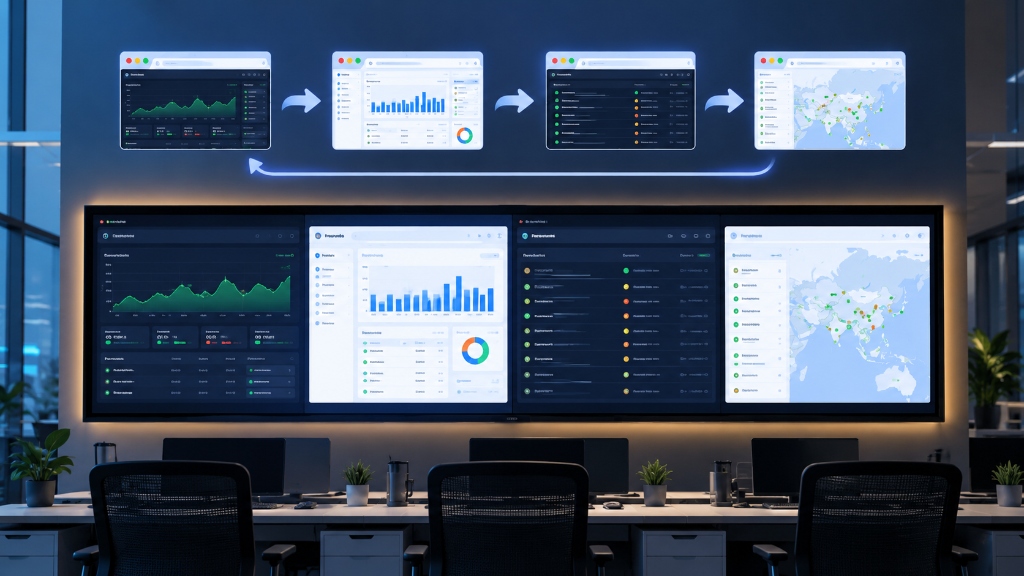 How revolver tabs cycle automatically between multiple open browser dashboards on screen.
This approach is particularly useful when you need to keep several sources of information visible but don't want to dedicate a separate monitor to every webpage. A revolver tab setup is ideal for office KPI boards, IT operations centers, digital signage, presentations, and personal productivity workflows.
How to Revolve Tabs Automatically in Chrome
If you want to use chrome revolver tabs or revolve tabs without manually switching between them, using a lightweight revolver tabs Chrome extension is the most reliable approach.
Tab Revolver is designed specifically for this purpose, letting you cycle through open tabs at any interval you choose.
Here's how to get started:
Step 1: Install Tab Revolver
Visit the Tab Revolver Chrome Web Store page and add the extension to Chrome. Once installed, you can access it immediately from your browser toolbar.
Step 2: Open the Websites You Want to Display
Open the webpages you want to rotate between. These could include analytics reports, monitoring dashboards, internal business applications, presentations, or other web pages. Arrange the tabs in the sequence you'd like them to appear.
Step 3: Choose Your Rotation Interval
Open Tab Revolver and configure how frequently you want each revolve tab to remain on screen before switching. For example:
- 10 seconds: Ideal for quickly cycling through lightweight status pages or alerts.
- 30 seconds: Great for KPI dashboards that need a quick glance.
- 1 minute or longer: Recommended for detailed analytics or reports that require reading time.
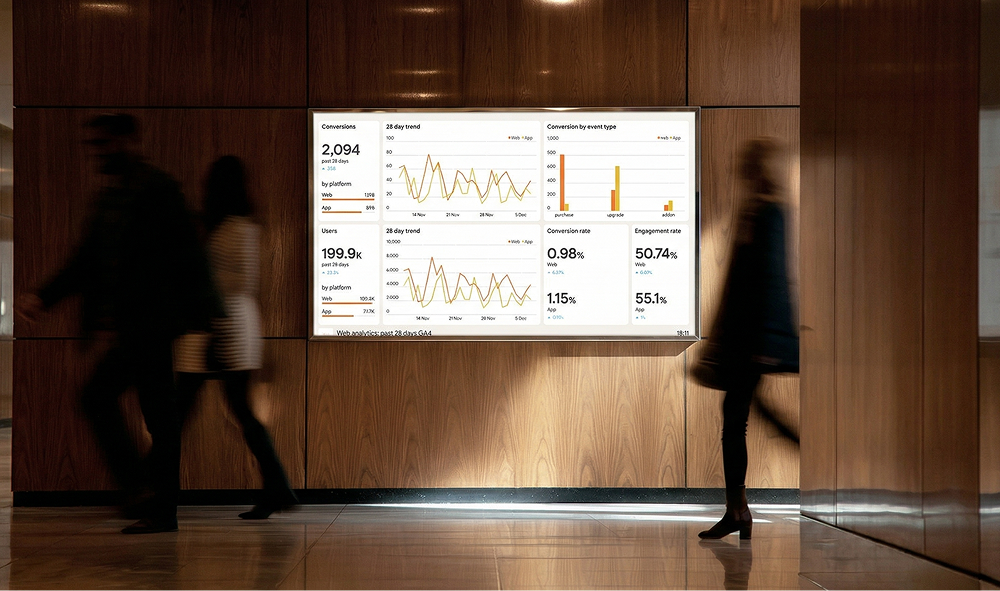 Tab Revolver's control panel allows you to customize durations, organize playlists, and automate tab switching.
Step 4: Start Automatic Tab Rotation
Click start to let Tab Revolver revolve tabs automatically. You can pause rotation whenever you need to interact with a page, adjust intervals on the fly, or configure which tabs participate in the rotation.
That's it—your browser now cycles through your selected webpages hands-free.
Practical Applications for a Revolver Tabs Chrome Setup
Chrome allows you to open dozens of tabs, but keeping important information visible is difficult. Here is how teams and individuals get the most out of revolver tabs Chrome automation:
1. Display Multiple Business Dashboards
Business teams often rely on separate tools for sales, revenue, customer support, and operational metrics. Instead of keeping just one dashboard visible, you can rotate through all of them on a single shared screen or secondary monitor.
2. Monitor Servers and System Uptime
DevOps and IT teams frequently monitor server health, error logs, and incident tracking boards. A tab rotator cycles through these pages automatically, helping teams keep an eye on infrastructure without manually clicking tabs all day.
Note: Automatic tab rotation does not replace real-time alerts or automated incident notifications. It simply makes multi-dashboard viewing more convenient on a shared display.
3. Power Workplace Digital Signage
Many offices use wall-mounted TVs to show company announcements, real-time KPI metrics, cafeteria menus, and visitor welcome slides. A small computer running Chrome with revolver tabs can rotate through these web pages cleanly and reliably.
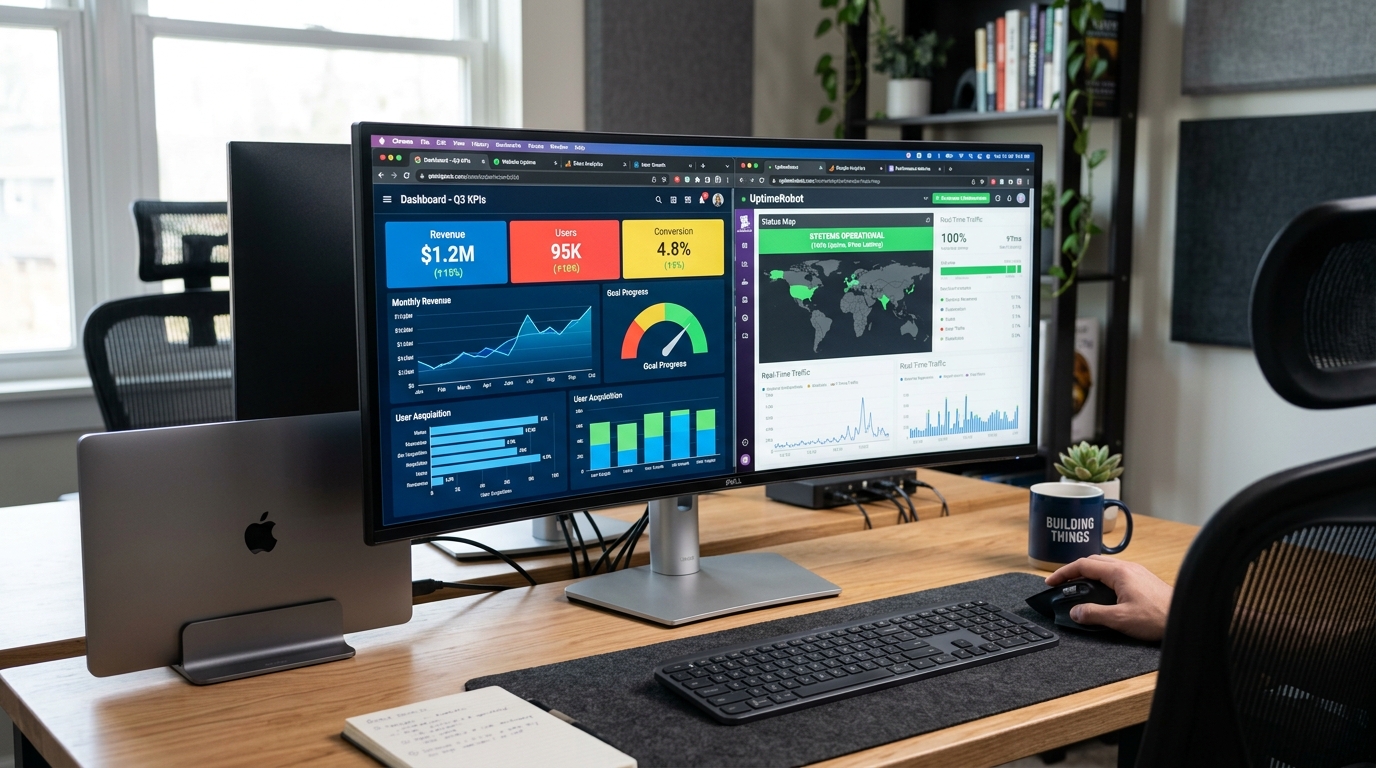 A dedicated display cycling through key business performance metrics and uptime monitors hands-free.
4. Review Analytics Without Context Switching
Marketing managers and website owners frequently check Google Analytics, search console data, and advertising campaign metrics. Cycling through these tabs automatically makes regular reviews effortless.
5. Run Live Web-Based Presentations
If your demonstration involves multiple web applications or live data sources, automatic tab switching lets you present them like a continuous slide deck while preserving live interactivity.
Key Features to Look for in a Tab Rotator
When selecting a tool to revolve tabs, look for features that fit real-world workflows:
- Custom rotation intervals: Set different viewing durations for different pages rather than being restricted to one global speed.
- Start and pause controls: Quickly freeze rotation when you need to inspect or interact with a webpage.
- Selective tab rotation: Choose specific tabs or windows to include so personal pages don't appear on shared screens.
- Pinned tab handling: Exclude pinned browser tabs from rotation so your essential daily tools remain undisturbed.
- Lightweight performance: An extension that runs efficiently without consuming unnecessary CPU or memory.
Tab Revolver delivers all of these capabilities in a focused, user-friendly interface. You can also organize your tabs into saved playlists directly in your web dashboard.
Automatic Tab Rotation vs. Manual Switching
Here is how manual tab switching compares to using revolver tabs:
| Manual Tab Switching | Automatic Tab Rotation (Revolver Tabs) |
|---|---|
| Requires clicking each tab repeatedly | Switches tabs automatically at set intervals |
| Relies on someone remembering to check each page | Cycles through information completely hands-free |
| Impractical for shared TV screens & kiosks | Built specifically for unattended displays & dashboards |
| Interrupts your workflow with constant context shifts | Keeps you informed without manual effort |
Manual switching works fine when you are actively focused on a single task. But for monitoring, digital signage, and multi-dashboard setups, automatic rotation is vastly superior.
Is Tab Revolver Right for Your Workflow?
Tab Revolver is ideal for anyone who wants to automate repetitive tab switching without complicated configuration. It is particularly valuable if you:
- Monitor multiple metrics or status boards throughout the workday.
- Manage office TV displays, reception screens, or operational kiosks.
- Want a clean, slideshow-like experience across several websites.
- Prefer saving curated tab groups into playlists for different tasks.
If you only use one webpage at a time, manual browsing is sufficient. But if you constantly find yourself toggling between tabs just to check status updates, revolving your tabs can save time and keep your focus intact.
Frequently Asked Questions
What does revolver tabs mean?
Revolver tabs refers to automatically cycling between open browser tabs at scheduled intervals. A browser extension performs the switching automatically, turning your browser into a hands-free display.
How do I revolve tabs in Chrome?
Install a dedicated extension such as Tab Revolver, open the webpages you want to rotate between, set your preferred interval duration, and click start. Chrome will begin cycling through the tabs automatically.
Is there a revolver tabs Chrome extension?
Yes. Tab Revolver is available on the Chrome Web Store. It allows you to rotate tabs automatically, configure custom intervals, organize playlists, and manage rotation across windows.
Can I use revolver tabs for dashboards?
Yes. Dashboard monitoring is one of the most popular uses for revolver tabs. Teams frequently rotate between sales metrics, Google Analytics, server uptime monitors, and customer service queues on a single display.
Can I control how frequently the tabs change?
Yes. Tab Revolver supports custom intervals, so you can set fast intervals (such as 10–15 seconds) for quick status checks or longer intervals (several minutes) for detailed reports.
Does automatic tab rotation replace monitoring alerts?
No. While rotating tabs makes it easy to review multiple systems on a shared screen, it should be paired with automated alerts and notifications for critical incidents.
Conclusion: Automate Your Tab Switching Today
If you regularly monitor several websites, revolver tabs eliminate repetitive clicks and keep your essential information constantly in view.
Whether you are managing business dashboards, monitoring server uptime, powering an office display, or presenting live web content, automating your tab rotation provides a seamless, hands-free experience.
Ready to get started?
👉 Install Tab Revolver from the Chrome Web Store and start revolving your tabs in Google Chrome today.
Get Tab Revolver for Chrome
Set custom intervals, automate monitoring dashboards, and display full-screen slideshows in seconds.